



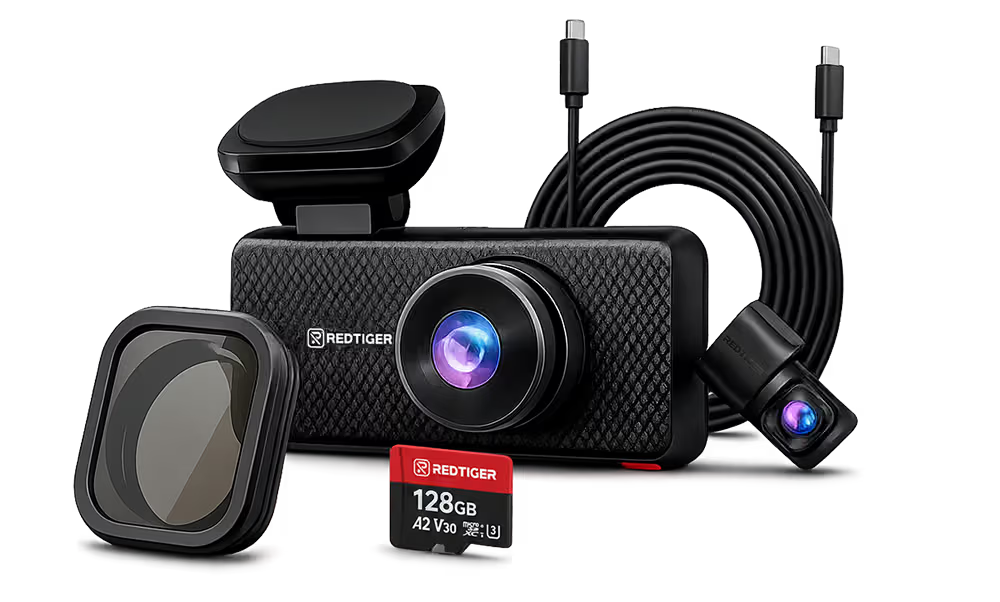


















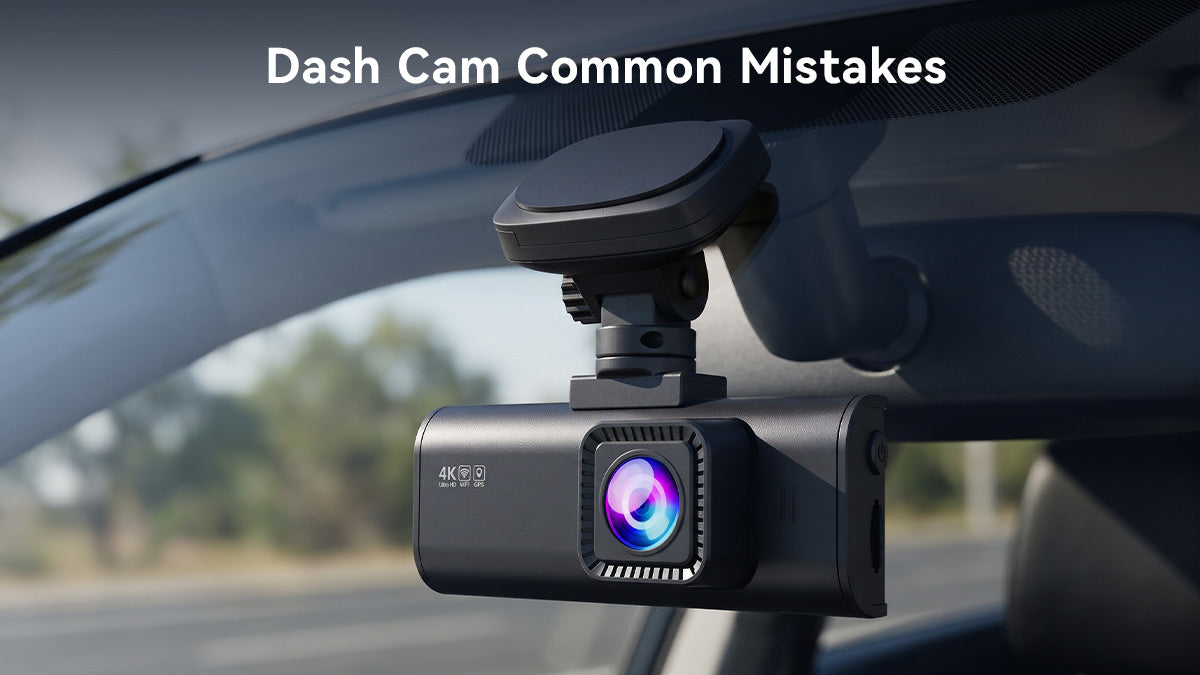
You've invested in a good-quality dash cam to capture on-the-road incidents. You even installed it, at least you thought so. Then you pulled the footage, only to find that the video isn't up to the mark. That's why you should watch out for common dash cam mistakes.
Common dash cam for car mistakes include bad mounting, the wrong memory card, missed settings, and skipped checks. A small error can leave you with a damaged, blurry, or distorted clip, or even no clip at all.
The good news is that nearly all of these errors are easy to fix without professional help. This guide covers six common dash cam mistakes. We'll cover buying decisions, installation mistakes, setup errors, improper use, negligent maintenance, and poor management.
What Dash Cam Buying Mistakes Can Cost You Later?
Most buying mistakes come from judging a camera on specific numbers. Relying solely on price or resolution blows the objective right away.
A good dash cam should match your vehicle, your driving habits and intentions, and then your budget. Check how to choose a dash cam for daily driving.
Choosing a Dash Cam Based on Resolution Alone
More pixels don't always mean better footage. Native 4K means the sensor captures 3840×2160 pixels, while upscaled video is enlarged from a lower resolution.
Also, resolution alone doesn't guarantee good footage. REDTIGER experts recommend comparing night samples before you buy. Then, you can think about coverage.
Ignoring Front and Rear Camera Coverage
Check which directions (outside the vehicle) you need covered. A 2-channel setup covers the two directions where most collisions occur (front and rear).
Meanwhile, a third camera adds cabin footage that helps rideshare and delivery drivers and families. Always pick the setup that fits your driving life.
Paying for Features You Never Need
Don't pay for features that you won't need or use. Check that the feature you want actually exists on the exact model you are buying — the REDTIGER range does not ship every function on every camera. GPS logging, for example, is documented on the F17 Elite and the A4, but it is not listed for the F9, which also has no display: on that model the settings menu can only be reached through the REDTIGER CAM app. Wi-Fi, voice control, a touchscreen and a cabin camera are likewise model-specific, so treat them as options to verify rather than features every dash cam includes.
Parking mode suits drivers who leave the car for long stretches. That said, a solo commuter may never need a cabin camera. Some drivers aren't comfortable with features like ADAS.
Which Dash Cam Installation Mistakes Affect Recording Quality and Safety?
The biggest installation mistakes are blocked view, poor aim/coverage, and loose cables. Always follow your vehicle manual and the dash cam instructions for a safe setup.
Mounting the Dash Cam in the Wrong Position
The best spot to mount your dash cam is behind the rearview mirror. That way, the cam can't block your view. Also, clean and dry the glass before attaching the mount. Windshield rules also vary by state.
FreightWaves notes that California allows a device in a 7-inch square in the lower passenger-side corner. It also suggests a low-profile mount if you can't confirm the rules. That's why you should check your own state's law.
Pointing the Camera Too High or Too Low
Aim the lens so the road fills most of the frame. Too much dashboard or sky wastes the shot and can hide plates. After you aim, check the live view or a test clip.
Leaving Cables Loose or Routing Them Incorrectly
Tidy cables keep your view clear. Run the cable along the windshield edge and tuck it under the headliner or trim panels. Keep wires away from airbags.
Kia manual says not to attach or place objects on or near airbag covers. That said, check your own vehicle's manual for the right routing.
Installing a Rear Camera Without Checking Its View
Test the rear view before you hide the wiring. Place the rear camera at the center of the rear windshield. On dual-channel models, you can adjust its angle as necessary. Roof racks, headrests, and tinted glass can block the shot.
Which Dash Cam Setup Mistakes Cause Missing or Unusable Footage?
A well-installed camera can still fail if the memory card, settings, or power setup is wrong. Spend ten minutes on setup to avoid most heartbreak later.
Using an Incompatible or Low-Quality microSD Card
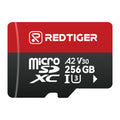
Choose a compatible card instead of random/standard memory cards. REDTIGER F7NA supports microSD cards up to 512GB. We recommend a U3-class card for dash cam use.
REDTIGER has Class 10 U3 cards from 32GB to 512GB. Get a high-endurance card for parking mode that writes far more data. Some models record to built-in storage and use the card only as a backup.
Assuming Loop Recording Is Off, and Ignoring What Gets Overwritten
Loop recording is already running when the dash cam leaves the factory, so there is no switch to turn on. What you can actually change is the clip length — 1, 3 or 5 minutes on most models — and how much capacity the card has. When the card fills up, the camera keeps recording and simply overwrites the oldest unprotected clips. Incident clips triggered by the G-sensor are moved into a separate locked folder, so they survive the overwrite. Confirm your own loop length in the settings menu and check the remaining capacity before a long trip.
Meanwhile, the G-sensor locks the collision clip, preventing the 'loop recording' feature from overwriting it. A camera without a G-sensor still keeps recording when the card fills up — it just overwrites the oldest unprotected clips like any other model. What you lose is the automatic protection of an incident clip, so save the footage you still want yourself.
Misunderstanding Video Resolution and Recording Settings
Balance the video quality against available storage. Storage use depends on the channel configuration, and most published estimates are for a single camera. On REDTIGER's own figures, a 128GB card records roughly 4 to 6 hours of 4K front plus 1080P rear, 256GB roughly 8 to 12 hours, and 512GB roughly 16 to 24 hours. If you only need front footage, a 256GB card holds about 20 to 25 hours of 4K. Pick the card from the channel layout you actually run, then check that it holds at least a full day of driving
A 3-channel system writes more data and fills storage faster. A 256GB card holds about 20 to 25 hours of 4K video.
Assuming Parking Mode Can Work Without the Correct Power Setup
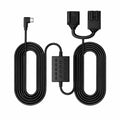
Parking mode needs the right power. Most parking features work only through a hardwire kit. Parking mode has three prerequisites. First, the power source: with the cigarette-lighter plug the parking mode option does not appear in the menu at all, because the camera has no way to keep drawing power. Second, the hardwire kit has to be connected to the fuse box, and only then does the parking mode entry show up in the settings; the default differs from model to model, so check the setting on your own camera rather than assuming it is on. Third, the low-voltage cutoff is a single threshold — when the kit detects the car battery falling below 11.8V it cuts power to protect the battery, so a time-lapse recording can end before its scheduled time. If the kit is powered from the OBD port, the camera needs the ignition off for five minutes before it enters parking mode.
Skipping the First Recording Test
Test before you drive away. Record a short clip, play it back, and check the picture, sound, date, and time.
Test every channel on a multi-camera system. The two-minute check catches a bad angle or a faulty card early.
Which Dash Cam Usage Mistakes Reduce the Value of Your Footage?
Daily habits decide whether your footage is useful as evidence. Check that the camera is recording, save key clips, and know what your sensors can and can't catch.
Forgetting to Check Whether the Dash Cam Is Recording
Make a quick status check part of your routine. Look for the recording light or the screen icon when you start the car. If a camera loses power or stops due to a card error, you get nothing.
Failing to Save Important Clips After an Incident
Save and transfer important clips right away. Loop recording overwrites old footage, so a crash clip can vanish if you wait. A G-sensor usually locks footage on impact, but don't rely on it alone. Always save the original file from the storage card.
Assuming G-Sensor or Emergency Recording Captures Every Incident
Know the sensor's potential limits. Any collision or impact wakes up the camera, but it can still miss slow scrapes. A triggered G-sensor starts recording immediately and locks the footage.
If a parking-lot bump is somewhat gentle, the dash cam may not save it. That's why we recommend medium sensitivity so driving over potholes and/or certain brakes don't lock every clip.
Ignoring Time, Date, and GPS Accuracy
Verify the timestamped footage. Built-in GPS stamps your location and speed on the video file. A wrong date or time can weaken a clip as evidence. Check it after every setup and following any power loss.
Recording Without Understanding Privacy and Local Laws
Keep up with your local rules. FreightWaves says several states require consent from everyone recorded in a private conversation.
Specifically, recording audio without permission can violate wiretapping laws.
Tell your passengers about the dash cam and turn audio off if you can't get consent. However, don't treat it as legal advice. Instead, check your state's statutes.
Which Dash Cam Maintenance Mistakes Lead to Device Failure?
Most failures trace back to a worn card, a dirty lens, or heat. A few simple monthly checks can prevent these mishaps.
Never Formatting or Checking the Memory Card
Format and check your card regularly. Format the card in the camera menu before a long trip. The SD Association says formatting is also recommended after a card is removed improperly.
It further warns that other tools may leave a card working poorly in some devices. Replace a card that keeps throwing errors. Also, consider upgrading the storage capacity for long drives.
Ignoring Dirty Lenses and Windshield Obstructions
Wipe the lens and the glass in front of the dash cam from time to time. Dust, haze, and wiper smears soften footage, especially at night. Check that stickers, tint strips, or a mirror tag don't block the view.
Overlooking Heat and Environmental Conditions
A supercapacitor is more stable than a lithium battery in hot sun. You'll encounter a failing or swelling battery more often than you might think.
REDTIGER F7NA features a built-in supercapacitor to prevent heat damage. Shade your car whenever possible, and check your model's temperature rating.
Ignoring Firmware Updates and Repeated Error Messages
Don't ignore error messages, but do not update the firmware on a camera that is already working. REDTIGER's own guidance is that if the device works normally you should not update the firmware yourself: hardware and firmware are developed together, and a package that does not match your model can stop the unit from working or even damage it. If a unit does misbehave, open the firmware page, select your exact model, and check whether a newer version exists before you download anything.
If an error keeps returning, try formatting the card and using a new one first. Contact the brand, since REDTIGER lists a 2-year warranty for our chosen model.
Which Dash Cam Footage Management Mistakes Hurt After an Accident?
After an accident, protect the original file and back it up quickly.
There are three separate transfer paths, and they are not the same thing. On the phone, the REDTIGER CAM app's Downloads tab only holds clips already pulled off the camera — to keep one on the phone itself you still have to tap Save. On a computer, you can pull the card with a card reader and open the file in the dedicated player, which currently runs on Windows and Mac only; other players may play the audio but show no picture. On the F77, the video sits on the built-in eMMC, so connect by data cable, choose the eMMC storage, and copy the clips you want to the card yourself — they are not transferred on their own. Keep the untouched original file and work on a copy for anything you share.
Waiting Too Long to Retrieve Important Footage
Likewise, grab the clip as soon as it's safe to do so. Overwriting can erase it, cards can fail, or even the dash cam may get affected. Wi-Fi models can send clips to your phone without removing the card. Make a second copy on a computer or in the cloud.
Editing or Compressing the Only Copy of a Recording
Don't touch the original file; never edit or compress. Keep the original file untouched and work on a duplicate when necessary. Save the original file from the storage card, not a re-uploaded copy.
Sharing Footage Without Protecting Personal Information
Think before you post the video online. Footage can show faces, plates, and home locations that may violate certain rules. Share it with your insurer, the police, or your lawyer first.
Always blur personal details if you post the captured footage online. As mentioned, work on a secondary copy to share online. It applies not just to accidents, but to all kinds of recording.
Checklist: How Can You Avoid Dash Cam Common Mistakes
The simplest way to avoid these errors is to run a short checklist at each stage. Use the following list below that works for any brand –
Before Buying a Dash Cam
- Confirm the camera setup: front only, front and rear, or three channels.
- Compare real day and night footage.
- Check supported memory cards and capacity.
- Verify parking mode, power needs, and useful features.
- Review warranty terms and installation needs.
During Installation and Initial Setup
- Mount behind the mirror without blocking your view.
- Route cables neatly and away from airbags.
- Aim the camera and check the picture.
- Confirm the card works and loop recording is on.
- Test every channel and verify the timestamp.
During Routine Use and Maintenance
- Check that the camera is recording each trip.
- Inspect the lens, mount, cables, and card.
- Format the card and update firmware as advised.
- Save important clips before they are overwritten.
- Back up incident footage and keep the original.
When Should You Replace or Troubleshoot Your Dash Cam?
Always act fast when problems repeat. The clips can go missing, the card may error out, or the picture can get worse.
In that case, format the card first, then swap it for a new one. If the issue continues or the hardware is damaged, use the warranty.
Conclusion
Most dash cam common mistakes involve improper fit, poor setup, and negligent driving. Choose a camera like the F7NA that fits your needs, mount it safely, use a supported card, and check it regularly. Save and back up any important clip right away.
REDTIGER dash cams are ready to match your driving needs, covering essential features at reasonable prices. You won't have to worry about storage capacity either. All you need is to set up and maintain the dash cam properly.

Frequently Asked Questions (FAQs)
What are the most common dash cam mistakes?
The top mistakes are a poor mount, an unsupported memory card, turned off loop recording, and no routine checks. Many drivers also forget to save, transfer, and protect the original clips after an incident.
Where should you mount a dash cam?
The best spot to mount your dash cam lies behind the rearview mirror. Installing it there doesn't block your view, which may violate state regulations. Always check your state's windshield rules first.
Why is my dash cam not recording?
Start from the basics: power, the card, and the settings. A full or failing card, a loose cable, or a power cut can stop recording. Try formatting the card and re-seating the cables. If it still fails, contact the manufacturer.
Does parking mode work when the car is turned off?
Yes, with the right power. Most parking features in REDTIGER dash cams use a hardwire kit, which protects the car battery. The kit's voltage protection cuts power before the battery gets too weak.

Leave a comment
All comments are moderated before being published.
This site is protected by hCaptcha and the hCaptcha Privacy Policy and Terms of Service apply.